
A plain page shows what its code says. A page with a template type also receives records: the product its address names, the categories of a listing. This guide covers adding a template type for a model of yours, the data each kind receives, the links between records and their pages, and the categories screen.
What the kit ships
App\Enums\PageTemplate has two cases:
| Case | What it is |
|---|---|
Home |
The page served at /. It receives no data. |
SomethingCategory |
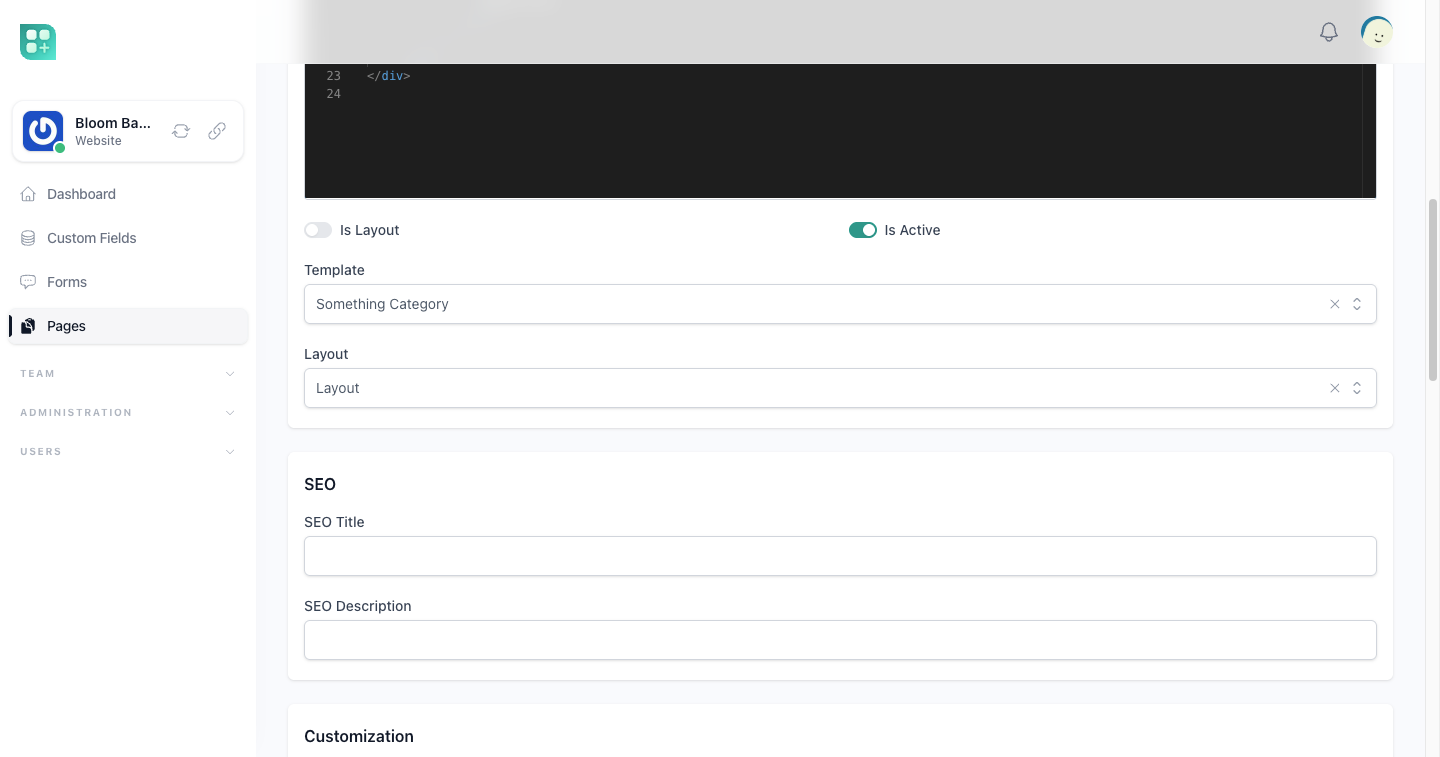
A placeholder showing the shape of a category listing. It points at a somethings relation no team has, so a page with it answers an error: replace it with your own before shipping. |
Everything else is yours to add, one case per kind of page your product needs.
Add a template type
Name the case after the model and the kind of page: {Model}Detail, {Model}Category, or anything else for a page with no data:
enum PageTemplate
{
    use IsEnum;

    case Home;
    case ProductDetail;
    case ProductCategory;
}
The team picks it in the Template field of a page. Each case is handled by the class of the same name in App\Classes\Templates, when you write one, and otherwise by the base class its suffix names:
| Suffix | Handler | Slug it forces | What the page receives |
|---|---|---|---|
Detail |
BaseDetail |
Must contain {slug}; defaults to products/{slug}. |
The record whose slug is in the address, as $product. A slug that matches nothing is a 404. |
Category |
BaseCategory |
Must contain {?slug}; defaults to categories/products/{?slug}. |
$categories, up to 20 categories of that type under the one in the address, or the top ones; $category, the one in the address, looked up by its slug among all the team's categories whatever their type — null only when the address carries no slug, and a slug that matches no category is a 404; and $products, the active records of that category and its children, or all the active records of the type when the address has no category, 20 per page; empty when the team has no records of that type to list. |
| anything else | Base |
Any slug. | Nothing. |
The model is read from the name: ProductDetail reads team()->products(), BlogEntryCategory reads team()->blogEntries(). So the relation must exist on App\Models\Team, and the model should extend App\Models\BaseTeamCrud, which gives it the team, the slug, the active() scope, the category, custom fields and the URL helpers below.
When a page's template type changes, or its slug does, the slug is checked against the pattern and replaced by the default when it does not fit. A detail pattern can also use {id}, {y}, {m} and {d}, matched against the record's id and creation date.
A handler of your own
When the base class is not enough, write App\Classes\Templates\ProductDetail extending it and override what you need: getData($params) for the variables, validateSlug() and defaultSlug() for the address.
namespace App\Classes\Templates;

class ProductDetail extends BaseDetail
{
    public function getData($data = [])
    {
        $product = team()->products()->active()->where('slug', $data['slug'] ?? null)->firstOrFail();

        return [
            'product' => $product,
            'related' => team()->products()->active()->where('category_id', $product->category_id)->limit(4)->get(),
        ];
    }
}
Link to records and pages
A record of a BaseTeamCrud model knows its own address: $product->url finds the team's active ProductDetail page and fills its pattern with the record, and answers # when there is none. The name of that page's template type is built from the table name, not from the model: it is made singular and studly cased, and Detail is added, so products gives ProductDetail and a table of two words, such as blog_posts, gives BlogPostDetail. From anywhere, team()->getLink('ProductCategory', ['slug' => 'shoes']) builds the address of the page with that template type, without the leading / that $product->url has (categories/products/shoes); it also answers # when there is none.
Categories
A team keeps one tree of categories per type at /team/categories/{type}. The screen has no menu entry: link it from your own screens, with the type your listing reads — the plural relation name, products for ProductCategory:
/team/categories/products
On that screen the team creates a category with a name, a slug, a description and an image (the Image field takes one), adds a subcategory with Add subcategory, moves top-level categories up and down, and edits or deletes them. The Slug field can be edited; left empty, the slug is generated from the name. It is unique inside the team and the category type. The image is stored in the team's library, in a folder of its own for each category, Categories/{category id}, once the category is saved.
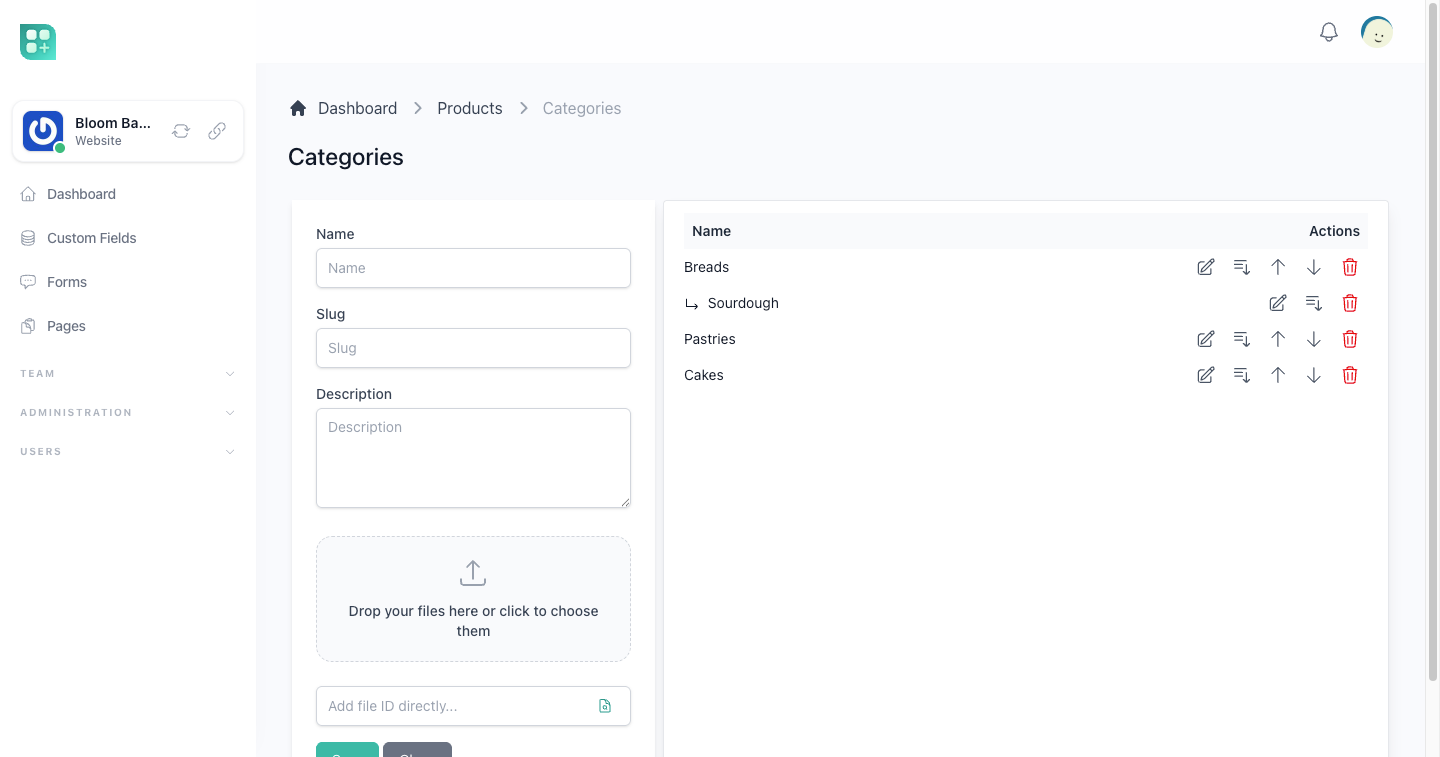
To create or edit a category:
- Fill in Name, and Slug if you want one of your own.
- Add a Description and an image if the category needs them.
- Click Save. The form empties for the next category.
To change one, click its edit icon; the form fills with it. Clean empties the form and leaves the category you were editing, or the subcategory you were adding, without saving anything.
The delete icon asks before deleting. A Delete category dialog names the category and, when it has subcategories, says how many will be deleted with it, counting every level below. Click Delete to delete the category together with all its subcategories; Cancel, or closing the dialog, leaves everything as it was. Their images stay in the team's library.
The screen checks no permission of its own. With team billing on, it asks what the other website screens ask — the manage plans permission and, when plans are active, a team subscription; with team billing off, any member who reaches the team workspace can use it.
The screen shows three levels, and the third has no Add subcategory. The parent is set only by Add subcategory and cannot be changed afterwards. The order of the top-level categories is shared by every type, so a move can swap a category with one of another type and leave the list as it was.
The default theme's category page shows each category with its own image. A category without one borrows the image of one of its records, picked at random among the records of that category and its subcategories that have an image; when none has, the category shows no image at all, rather than a broken one.