
Custom fields let a team store one more value on its pages without anyone writing a migration: a subtitle, a price, a cover colour, a related page. This guide covers turning them on, creating one, and reading its value from a page's code.
Turn them on
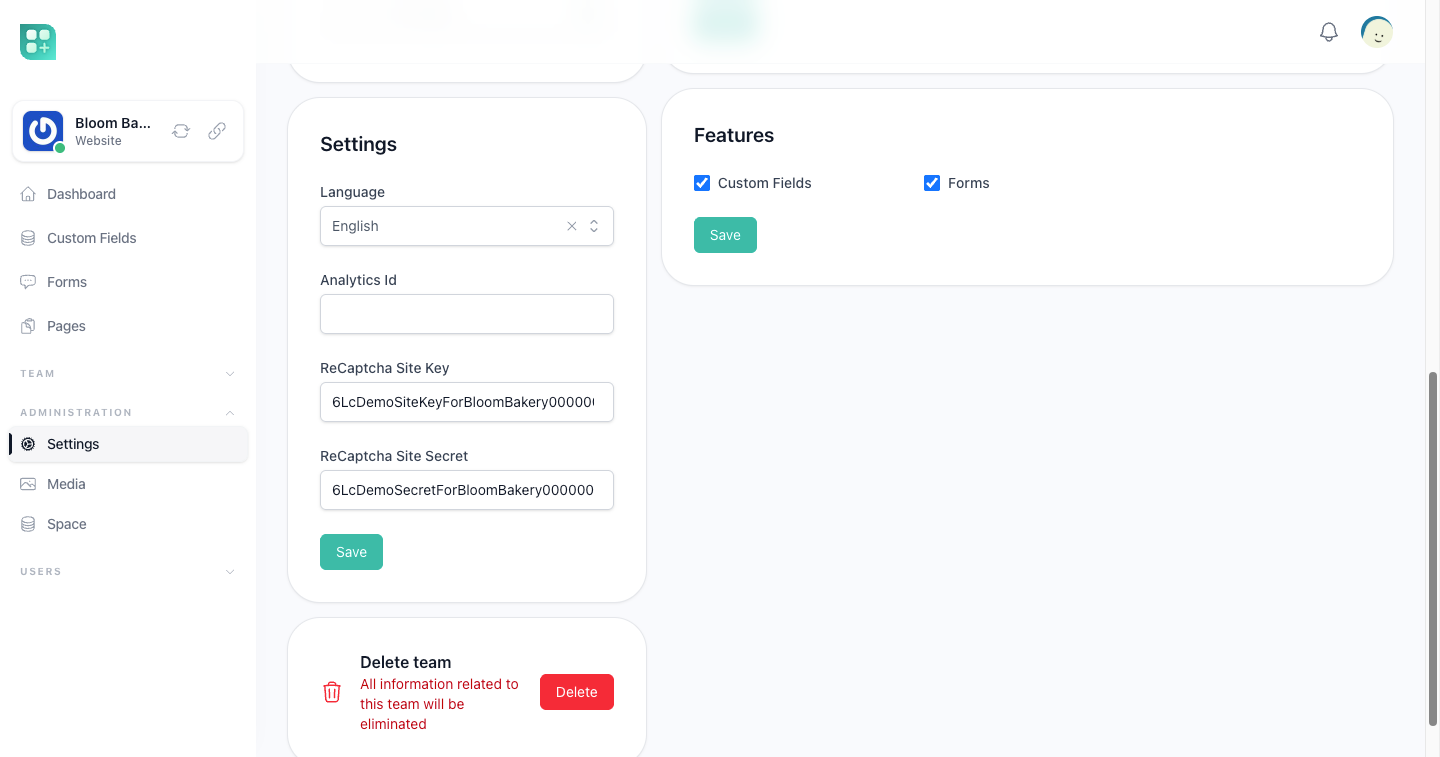
Each team turns them on under Features in Settings. From then on the pages screen shows a Custom Fields link, and the custom fields screen is open to the members whose role has See ticked for Custom Field. With the switch off, the custom fields screen refuses every action; fields created before keep their columns and filters on the list of pages.
Create a field
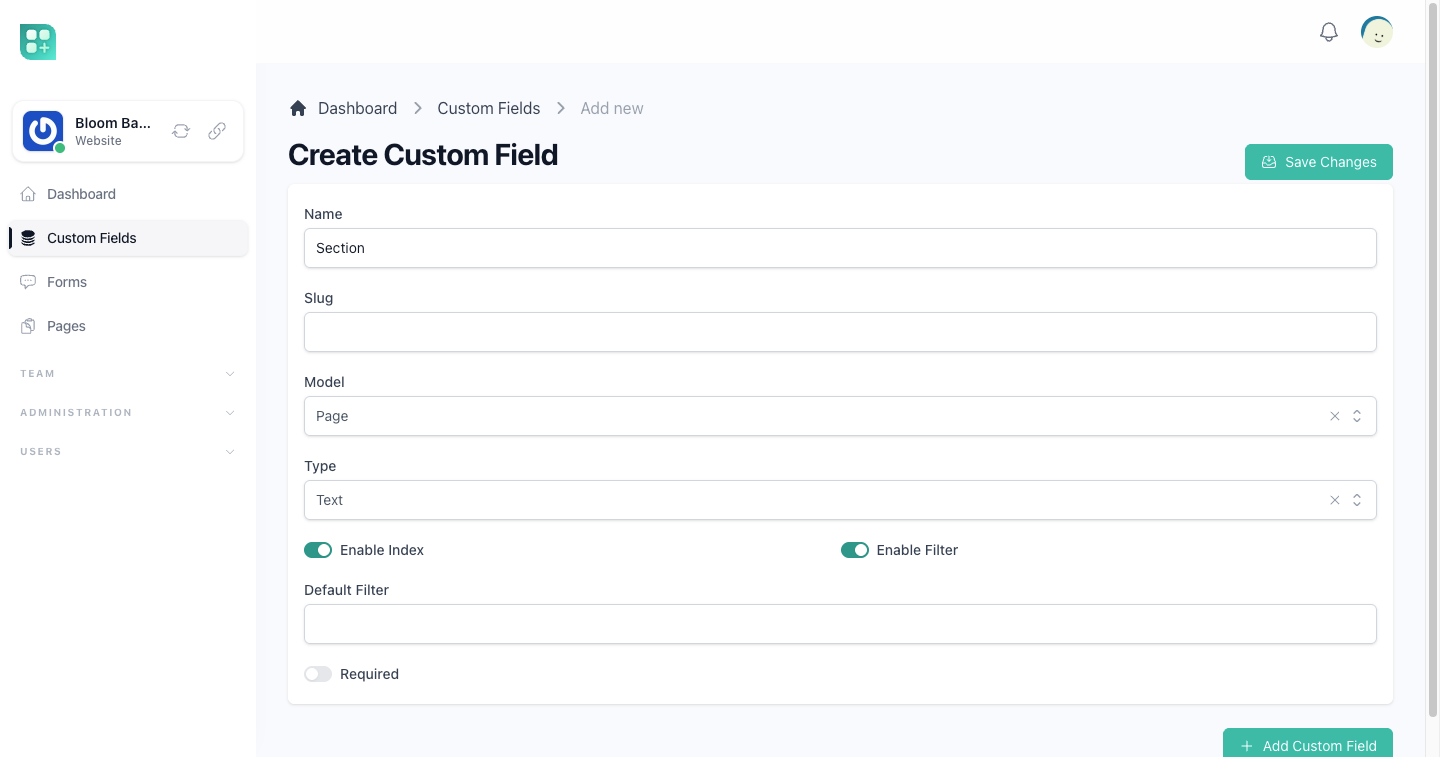
Create Custom Field asks for:
| Field | What it does |
|---|---|
| Name | The label of the field. |
| Slug | The key the value is stored under. Left empty, or with only spaces, it is generated from the name, both when creating the field and when editing it. |
| Model | What the field belongs to. The kit ships with Page. |
| Type | One of the types below. |
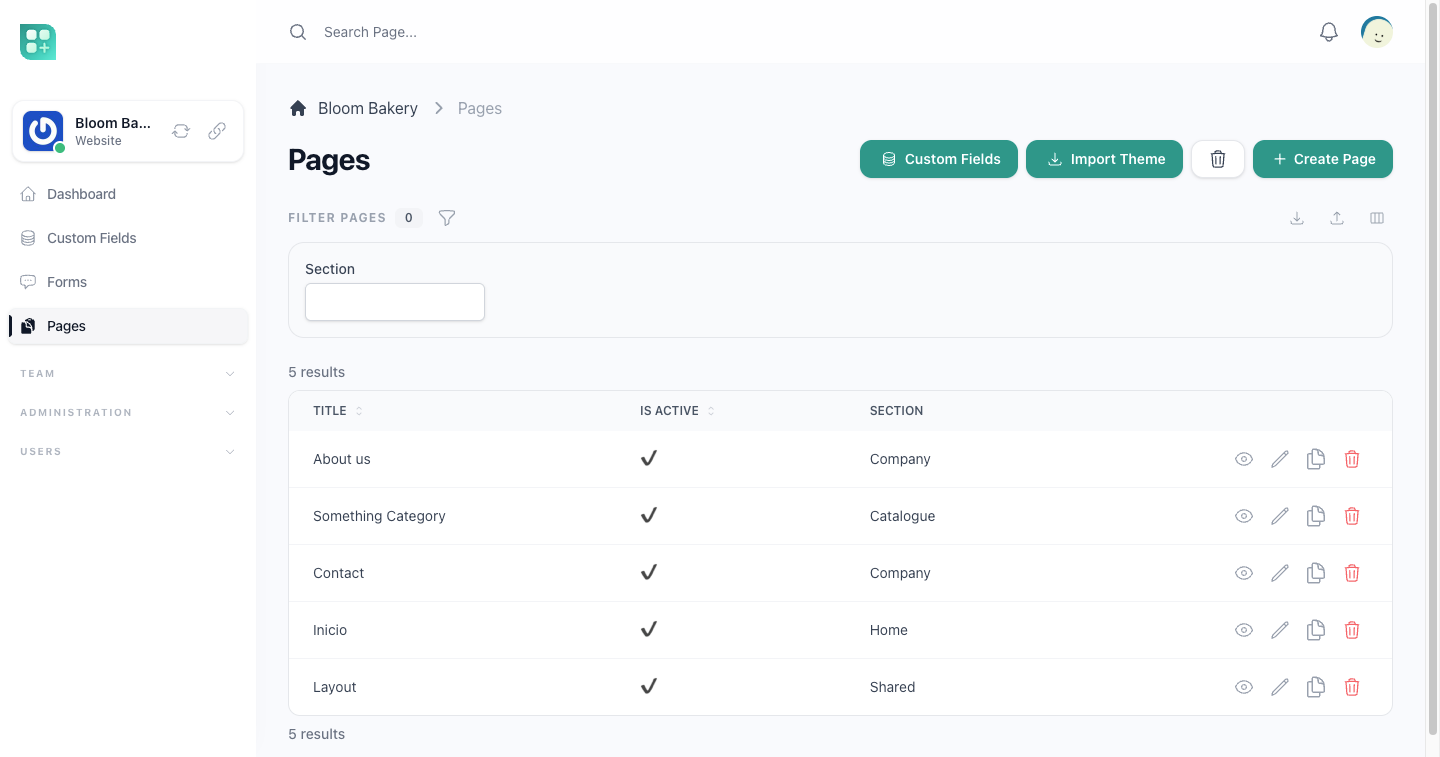
| Enable Index | Shows the field as a column in the list of pages, with each page's value: the text or number, the chosen option of a Select, Active or Inactive for a Boolean, and -- when the page has none. |
| Enable Filter | Offers the field as a filter on the list of pages. |
| Default Filter | The value the filter starts with, when filtering is on. |
| Required | Meant to stop a page from being saved without it. Not enforced yet: the page editor does not validate custom fields. |
| Type | The input it stands for |
|---|---|
| Text | A one-line text input. |
| Textarea | A multi-line text input. |
| Select | A list of options, which you type when creating the field. |
| Number | A number input. |
| Boolean | A yes or no switch. |
| Belongs To | A picker of one record of another model, chosen when creating the field. |
| Has Many | A picker of several records of another model. |
| Toast Editor | A rich text editor. |
The page editor does not show custom field inputs yet, so a value cannot be entered there: the definitions, the index columns and the filters work on the list of pages only. Open Custom Fields from the pages screen to see the fields of pages only, and move a field up or down to change their order.
After creating a field
Saving Create Custom Field leaves you on the same form with a success notice: it does not go back to the list. Go back to the Custom Fields list yourself to see the new field.
On the list:
- Click a field to open its detail. Its Default Filter and its Settings (the options of a Select and the like, as JSON) are shown only there, not in the list.
- Click the edit icon to open the same form with the field's values. Saving it also leaves you on the form with a notice. Editing takes Update ticked for Custom Field in the member's role.
- Click the delete icon to delete it. Deleting takes Delete ticked for Custom Field.
When the list is opened from the pages screen it is filtered to pages, and only then it shows the Order column and the Move up and Move down actions.
Read a value in a page
The values are stored with the page, under the field's slug:
<h2>{{ $page->custom_fields['subtitle'] }}</h2>

@if($page->custom_fields['featured'])
    <span class="badge">Featured</span>
@endif