
A team's site answers on the address saved as its URL. The team chooses it in the domain selector, either a free subdomain of one of your domains or a domain it owns. This guide covers both, what the kit does on its own for each, and the checker that says where a domain is stuck.
Where the domain is chosen
The domain selector appears in three places: when a team is created, under General information on the team's Settings screen, and in the Domain field of the team form on the admin panel's Teams screen, where an administrator creates or edits a team. It has two modes, picked with Domain Type.
The selector changes the URL the form will save as the team types or picks. On the Settings screen and when creating a team, every change of the type, the subdomain, the base domain or the URL changes it at once, and the form's own Save stores it without asking for any confirmation; a badge says Pending confirmation while it differs from the URL the page opened with. On the Settings screen the form's Save is not the only one that stores it: the Save of the Settings card and of the Features card, and uploading or removing the team picture or the team icon, save the team too, pending URL included, and without checking it. In the admin panel the same happens with Free Domain; with My Domain, the URL the form sends changes when Confirm Domain is pressed, and changing Domain Type empties it at once, so saving the form without confirming a URL saves an empty one.
Confirm Domain appears only with My Domain. It validates the domain and records it, and at that moment marks the previous domain as no longer in use, which removes its DNS record, Ploi tenant and certificate if it was a free subdomain, before Save is pressed.
A free subdomain
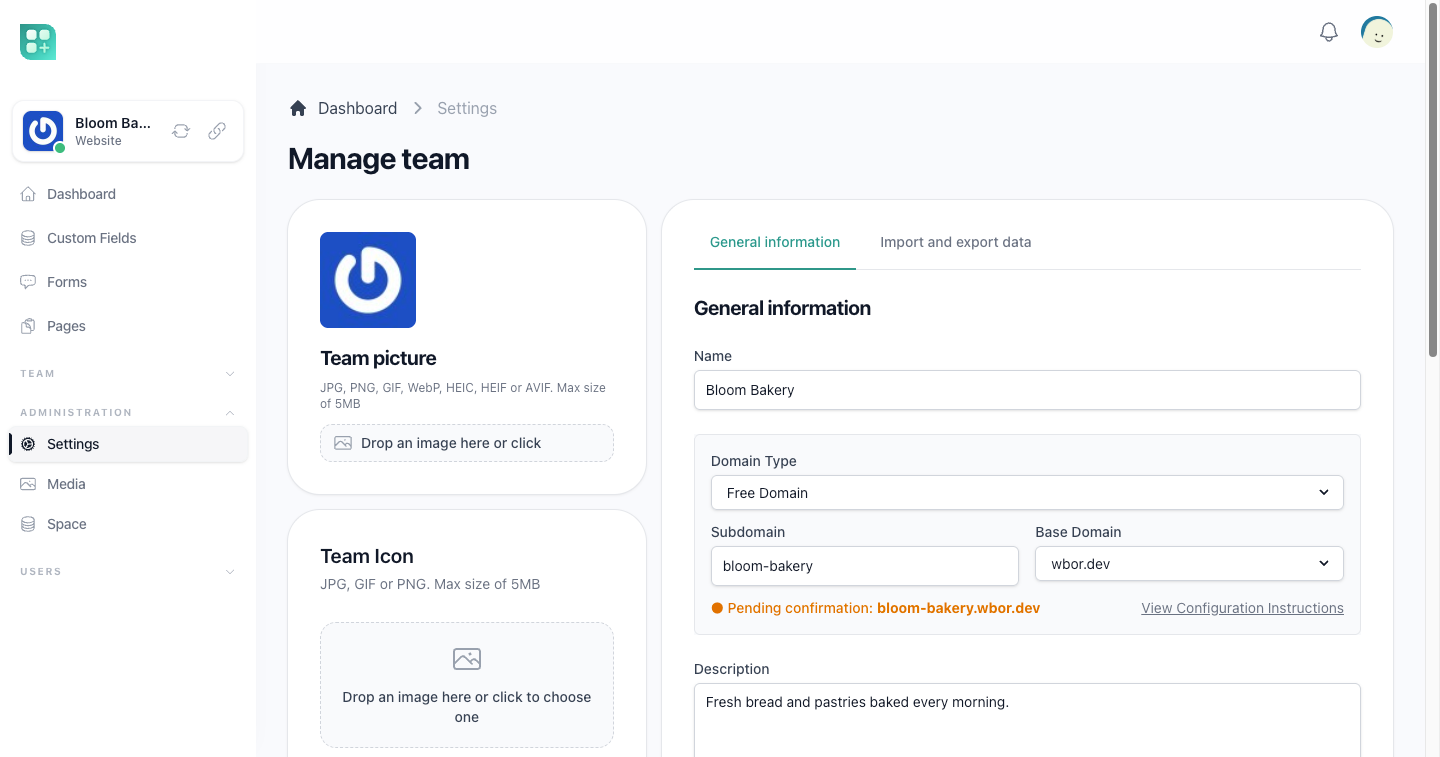
With Free Domain, the team types a Subdomain, such as mystore, and picks a Base Domain from the domains you offer for free subdomains (see For developers below). Saving the form stores mystore.example.com as the team's URL.
The kit has a provisioning chain for free subdomains, which runs in this order:
- Creates a CNAME record for
mystore.example.comin the Cloudflare zone of that base domain, pointing at your application's host. - Adds the subdomain as a tenant of your Ploi site.
- Requests a certificate for it on Ploi, 30 seconds later.
- Checks the certificate 5 minutes later, and again every 5 minutes, up to 6 times. If it is still not active, the domain is marked with an SSL error and a new certificate is requested 30 seconds later, which starts the checks again.
The chain starts when the team's URL changes to a URL that has a free domain record with its subdomain and base domain. Saving the same URL again does not start it, and neither does creating a team. Today no screen creates that record: Free Domain has no Confirm Domain button, so a free subdomain chosen in the selector is saved as the URL with no DNS record, Ploi tenant or certificate, and the selector shows no status badge for it. The checks that a subdomain does not start with https:// or www. and does not already have a DNS record in that zone belong to that confirmation, so they do not run either.
Teams that already had a free domain record (the records created when domains moved to their own table on 2026-03-29) do not go through the chain again when they save the same URL. For them the chain runs only when the team's URL changes to a URL that has a free domain record with its subdomain and base domain, or when someone presses Run Server Configuration or Request SSL in the checker below, which start steps 2 and 3 without any save. When the certificate is active the domain is marked active and the selector shows Domain ready. Moving such a team to another subdomain, or deleting the team, removes the old DNS record, Ploi tenant and certificate; the new subdomain is not provisioned, as above.
View Configuration Instructions also appears with Free Domain while a change is pending. When the pending subdomain already has a free domain record, it says the domain is managed by the platform and may take up to an hour to be available; that notice is only shown there, not in the checker. For a new subdomain, which has no record, it shows the CNAME instructions of a domain of the team's own instead. Steps 2 to 4 are queued jobs; the values they need are in Configure the builder.
A domain of the team's own
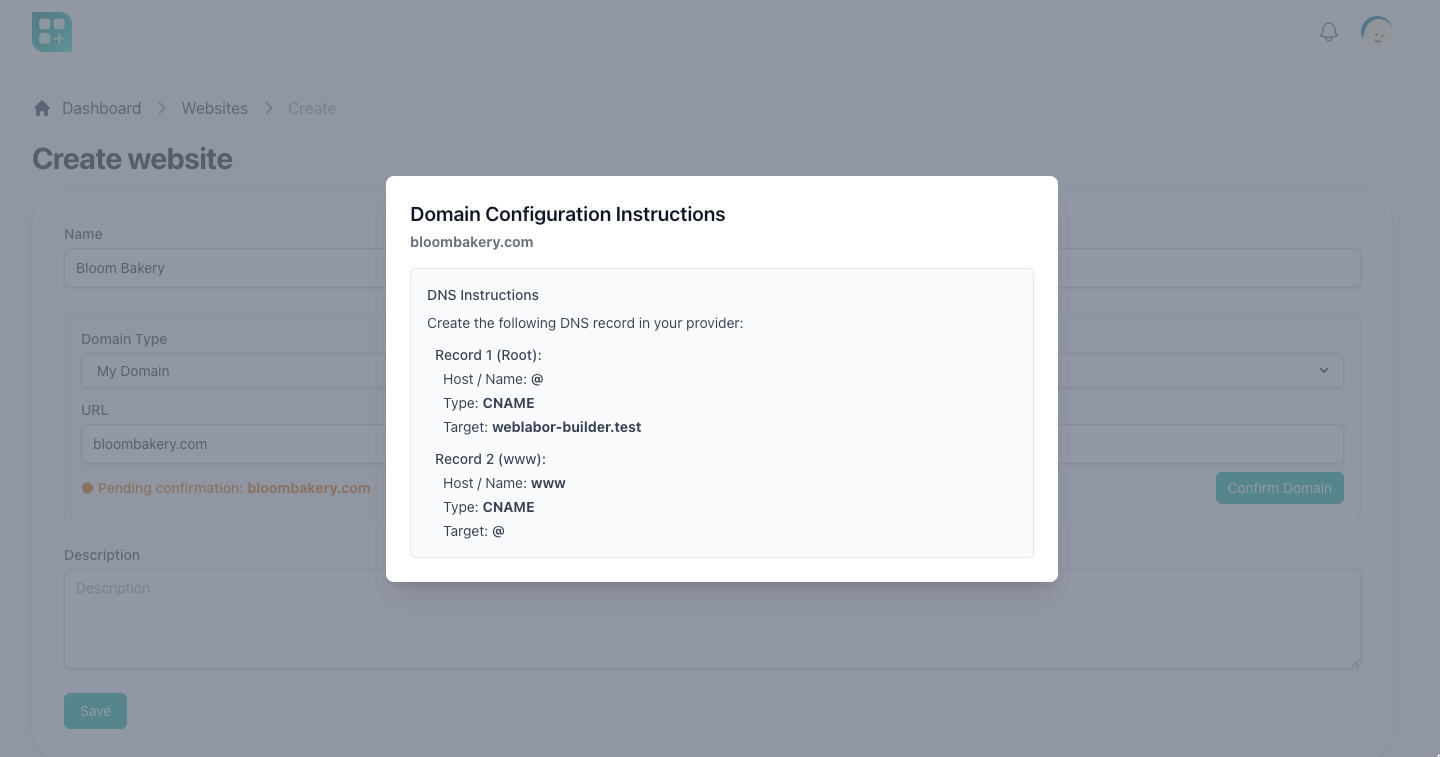
With My Domain, the team types its domain in URL, such as store.com or shop.store.com, without www.. View Configuration Instructions shows the records to create at the team's DNS provider:
| Domain | Records |
|---|---|
A root domain, store.com |
A CNAME on @ pointing at your application's host, and a CNAME on www pointing at @. |
A subdomain, shop.store.com |
A CNAME on shop pointing at your application's host. |
A root domain needs a DNS provider that accepts a CNAME at the root, often called CNAME flattening; that is the provider's choice, not the kit's.
The kit does not add a custom domain to Ploi or request a certificate for it: the server and the certificate of a team's own domain are yours to set up. The checker below never reports a custom domain as active yet: its certificate check needs a subdomain and a base domain, which a custom domain does not store, so Recheck Configuration or Request SSL leaves it in Error even when the certificate is in place.
The domain checker
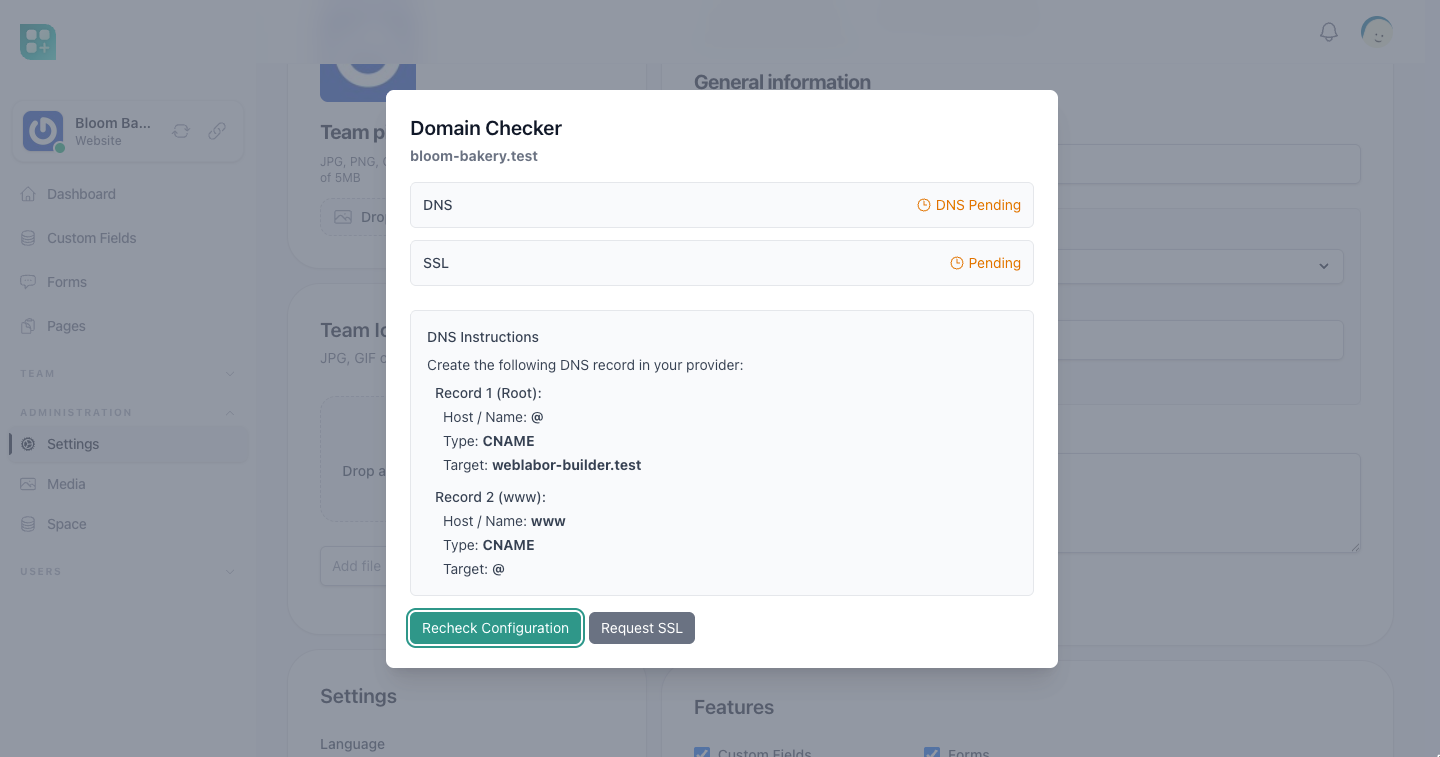
When the team's saved URL has a domain record (a custom domain confirmed with Confirm Domain, or a free subdomain from before, as above), the status badge next to it opens the checker. The badge reads Domain ready for a free subdomain once the certificate is active (Healthy, meant for a custom domain, is not reached yet, as said above), Error when a step failed, and Pending in between. The checker answers three questions separately:
| Check | What it means |
|---|---|
| DNS | The domain reaches your application: the checker calls https://{domain}/api/dns-validation and expects an answer. |
| Server | Ploi knows the domain. Only shown for a free subdomain. |
| SSL | The certificate is active. |
Recheck Configuration runs the DNS and certificate checks again. Run Server Configuration appears for a free subdomain whose server step never finished, and Request SSL while the certificate is neither active nor being checked.
The DNS warning on team screens
The team screens can show a red notice at the top, «Your DNS is not configured correctly.» with a Check DNS link to the DNS status screen. It appears only when the team's DNS check is recorded as failed and its domain is not a free subdomain, two values of the older DNS status flow. Today it appears for nobody: those values were moved to the domain records on 2026-03-29, and nothing records a failed check any more.
If it ever appears:
- Click Check DNS. The link opens the DNS status screen on the same domain the notice was shown on, the team's own domain or yours.
- Create the record the screen shows at the team's DNS provider.
- Click Verify DNS Now once the record has propagated.
The DNS status screen
The DNS status screen shows the CNAME record the team's URL needs and a Verify DNS Now button that calls the same address as the checker's DNS check. It is an older screen: it keeps its result on the team rather than on the domain, so the checker above does not see it and it does not see the checker. Use the checker.
For developers
- The base domains Base Domain offers are the ones listed in
config/app.php→available_domains. - Your application's host, which the CNAME records point at, is the host of
APP_URL. - The screens this guide names are at these addresses: creating a team at
/app/teams/create, the team's settings at/team/settings, the admin team form under/admin/teams, and the DNS status screen at/team/dns-status, whose button calls/api/dns-validation.