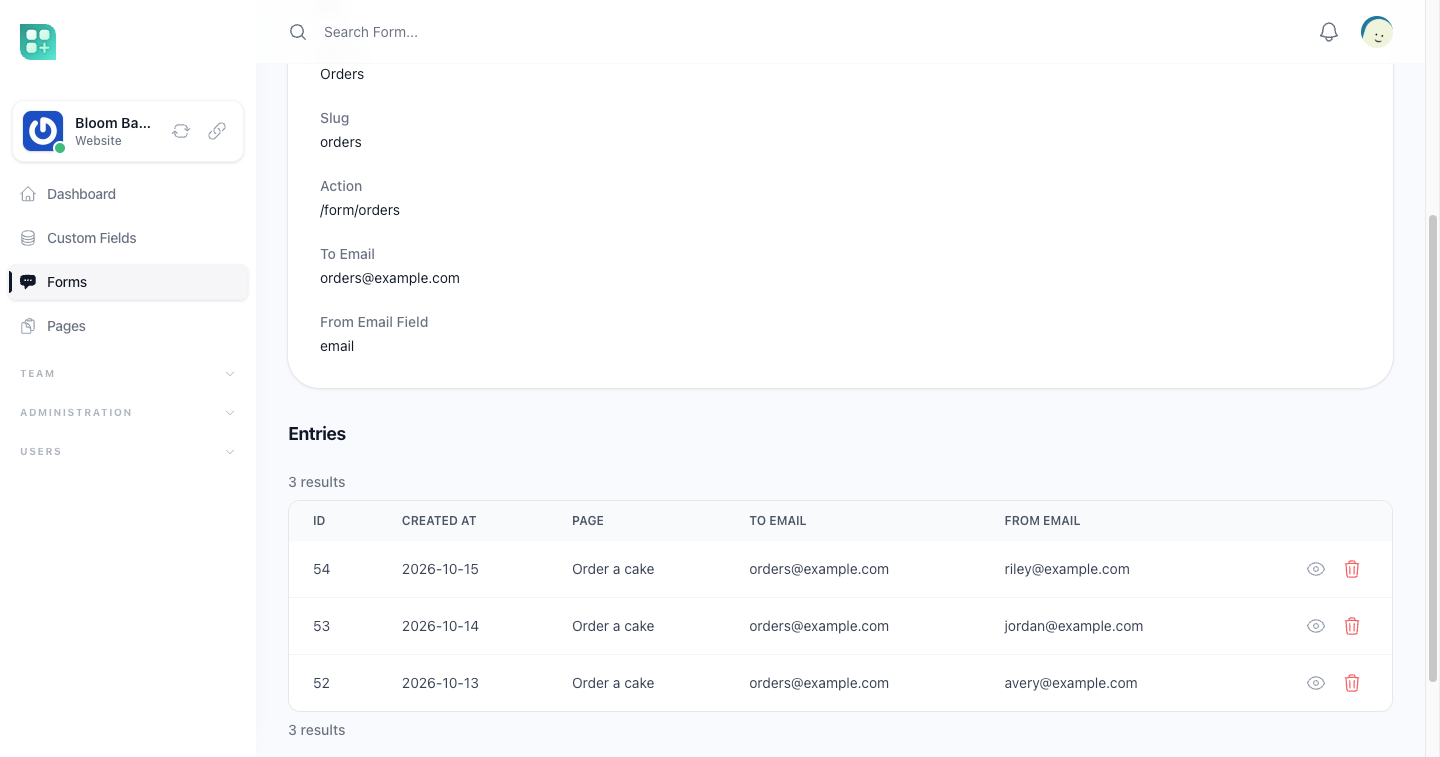
A form on a team's site is ordinary HTML written in a page. There is no form builder: the site reads the form from the page itself, validates what arrives against the form's own attributes, stores it as an entry and, when asked, emails it. This guide covers writing the form, how each field is validated, and where the entries are read.
Turn forms on
Each team turns forms on under Features on its Settings screen. From then on the team's Forms screen is open to the members with the Form: See permission. The switch only opens that screen: a form written in a page is accepted and stored either way.
Write the form
Post the form to /form/{slug} on the site, with method="POST":
<form action="/form/{{ $slug }}" method="POST">
    <x-recaptcha />

    <label for="name">Name</label>
    <input id="name" type="text" name="name" required minlength="2" maxlength="50" value="{{ old('name') }}">

    <label for="email">Email</label>
    <input id="email" type="email" name="email" required value="{{ old('email') }}">

    <label for="topic">Topic</label>
    <select id="topic" name="topic">
        <option value="quote">A quote</option>
        <option value="support">Support</option>
    </select>

    <textarea name="message" required></textarea>

    <button type="submit">Send</button>
</form>
No CSRF token is needed. The action can be a path that starts with / or a full address such as https://example.com/form/contact: only its path is read, so the domain in it does not matter. An address with www., such as https://www.example.com/form/contact, is sent on to the same address without www., and the submission keeps its fields, is saved and brings the visitor back to the page they sent it from. The form can live in the page's code, its header or footer block, or in its layout.
The slug links the form to its entries. A team that already created a form with that slug on the Forms screen gets its entries there. Otherwise the first valid submission creates the form, named Form - and the page's title, and gives it the slug written in the action. It is created only once: every later submission to that address arrives at the same form. {{ $slug }} in the action, as above and as the default theme's contact page does, uses the page's slug; any other slug works the same way, with no need to create the form first.
A submission is only accepted from a page of the site, opened in the visitor's browser: the site finds the form by reading the page the visitor came from. It takes that address from the browser's Referer header first, then from the previous address kept in the visitor's session, and looks for the page whose slug is exactly that path (the page with the Home template for /). A post sent from anywhere else is refused with a 419 error. A page whose slug has a pattern, such as products/{slug} or categories/products/{?slug}, never matches, so a form placed on it is refused the same way.
How each field is validated
The rules are read from the HTML of the form, field by field, so there is nothing to keep in step. Every input, select and textarea with a name is a field.
| In the HTML | Rule applied |
|---|---|
required |
Required. Without it the field may be empty. |
minlength or min |
At least that length, or that value. Only a whole number above zero counts: min="0" and negative values add no rule, and 2.5 is read as 2. |
maxlength or max |
At most that length, or that value, with the same reading. |
pattern |
The whole value matches the pattern, as the browser checks it. |
type="email" |
A valid email. |
type="url" |
A valid URL. |
type="number", type="range" |
A number, such as 42 or 3.5. With min or max, the number is compared with them. |
type="date", datetime-local |
A date. |
type="tel" |
A phone number, optionally with a country code. |
type="color" |
A hex colour. |
type="file" |
A file. |
type="radio" |
One of the values of the radios with that name. |
<select> |
One of its options that is not disabled. |
type="checkbox", type="hidden" |
No rule beyond required and the lengths. |
<textarea> |
No rule beyond required and the lengths. |
For a <select> or a radio group, an option whose value is empty is not among the accepted values. An option with the value 0 is accepted like any other.
To write the rules yourself, add data-validation with Laravel rules separated by |. They replace the ones read from the field; put inherit anywhere in the list to add yours to the ones read instead:
<input type="text" name="code" data-validation="required|alpha_num|size:6">
<input type="email" name="email" required data-validation="inherit|ends_with:@example.com">
When a field fails, the visitor is sent back to the page with the errors, and old() gives back what they typed. In a form with reCAPTCHA, validation stops at the first field that fails, so only that field's errors come back. When every field passes, they are sent back with a success message.
Files and reCAPTCHA
A file field stores the file in the team's library, in a folder of its own for each form, Forms/{form id} inside its root folder, and its size is added to the space the team uses. When the team has no room left for the file, the whole submission is refused: nothing is stored, no email is sent, and the visitor goes back to the page with what they typed and, in the site's error window, the error "This site cannot receive files right now. Try again later or contact the site." See Team files and space on the Teams site.
The site's uploader, <x-site-uploader name="…">, works as a field of the form: the files a visitor uploads with it are kept with the entry, one file field each, in the folder the uploader names. Their space was checked when they were uploaded, so a full team never refuses the submission because of them. See Pages and layouts.
Put <x-recaptcha /> inside the form and a submission that carries an invalid reCAPTCHA token is refused, and nothing is stored. The token is not required: a submission without one is accepted. The keys are the team's own, saved in its settings; while the team has not saved them, <x-recaptcha /> does not add the script that puts the token in the form, so its submissions arrive without one and are accepted. See Site settings and visitors.
The form's settings
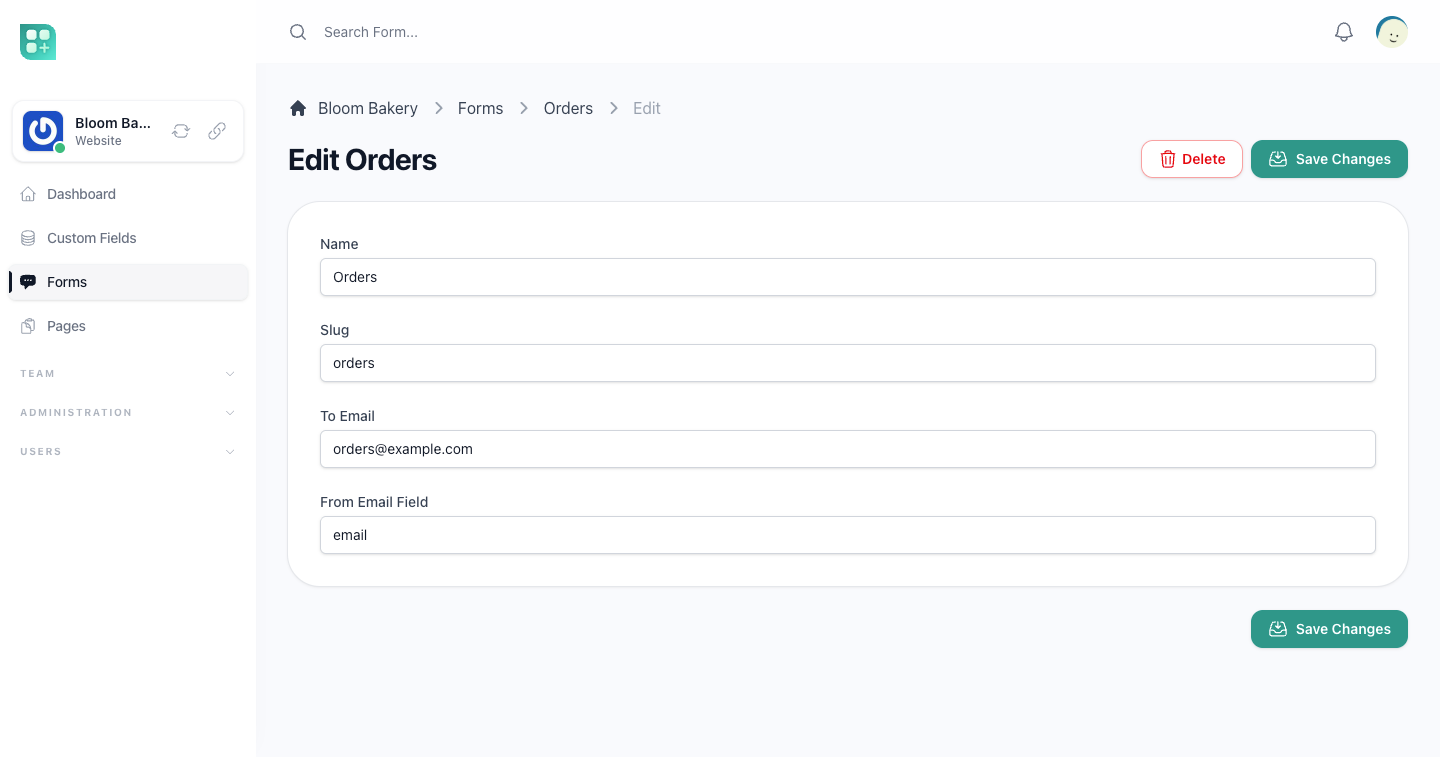
Open a form on the Forms screen to change:
| Field | What it does |
|---|---|
| Name | How the form is called in the workspace and in the email. |
| Slug | The {slug} of the action. Lowercase letters, numbers, -, /, { and }, up to 100 characters, unique inside the team. A slug with / is saved, but a post to it never reaches the form: /form/{slug} takes a single segment. |
| Action | The path to post to, shown for you to copy. |
| To Email | Where each entry is emailed. Empty, nothing is sent. |
| From Email Field | The name of the field that holds the visitor's email, such as email. When it holds a valid address, replying to the email answers the visitor (Reply-To). Without a valid address, a reply goes to the site's sender. |
The email always comes from the site's own sending address, never from the visitor's, so mail servers do not reject it or mark it as spam. It lists every field and its value under the form's name, and each file as its address in the library. The reCAPTCHA token is left out.
Read the entries
A form's page lists its entries. Each entry shows when it arrived, the page it was sent from, the addresses it was emailed to and from, every field with its value, and the rules that were applied to it. Entries cannot be created or edited from the workspace, only read and, with the Form Entry: Delete permission, deleted. A field's type shows when that field is opened.
The entry and field screens are not in the menu: they are reached from a form.
- Open Forms and click a form.
- Under Entries, open an entry. Reading entries takes Form Entry: See.
- Under Inputs, open a field to see its type. Reading fields takes Form Entry Input: See, and a field cannot be deleted.
These screens do not look at the Forms switch. With it off, the forms screen refuses every action, but an entry's address still opens for a member with those permissions.