
Besides its name and its domain, each team's site has a handful of settings the team changes itself, on the team's Settings screen. This guide covers what each one changes on the site, and the visitors list that records who signs in there.
Changing them takes the Edit Settings team permission. Without it, the image uploaders and the Save buttons are not shown and the other fields are disabled; the domain selector stays editable, Confirm Domain included.
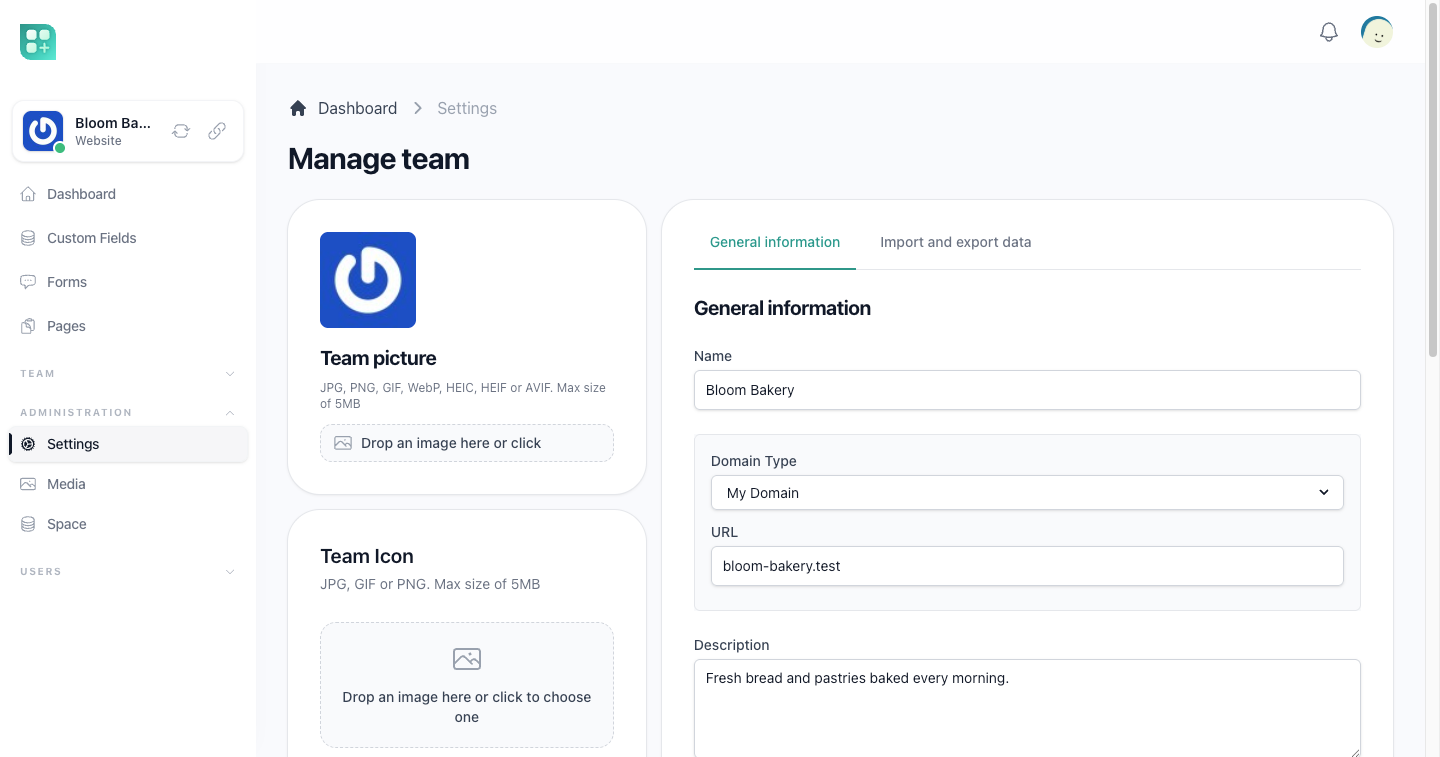
Team picture and team icon
The settings screen has two images, and they do different things:
- Team picture is the logo Teams already gives every team: it identifies the team in the workspace and the switcher. See Team files and space on the Teams site.
- Team Icon is the site's own icon. It is the favicon of every page of the site, and it replaces the team picture in the workspace sidebar. The default theme's layout also uses it as the logo in its menu.
The icon has the same image field as the team picture: the icon on the left and a one-line box, "Drop an image here or click", to drop a new one. It takes JPG, PNG, GIF, WebP, HEIC, HEIF or AVIF, up to 5 MB. A new icon replaces the current one straight away, without asking what to do with the old one. It is stored in the Teams folder of the team's file library, inside the subfolder named with the team's number, and counts against the team's space like any other file. Icons a team had before are kept in that same folder, at the same address.
Settings
| Setting | What it changes on the site |
|---|---|
| Language | The lang attribute of every page of the site. Empty, the pages declare Spanish. It does not translate anything: the pages are written in whatever language the team writes them. |
| Analytics Id | The site loads Google's tag with this id on every page and configures it with the same id, so page views reach that Analytics property. |
| ReCaptcha Site Key and ReCaptcha Site Secret | The keys the site's reCAPTCHA uses. While a request is served on the team's domain, they replace the application's own keys, so each team's forms are checked against its own reCAPTCHA account. See Forms and entries. |
Features
Two parts of the website layer stay off until the team ticks them under Features:
| Feature | What it opens |
|---|---|
| Custom Fields | The custom fields screen, and its link on the pages screen. See Custom fields. |
| Forms | The team's Forms screen. See Forms and entries. |
Ticking them only opens the screens; the permissions of each still decide who uses them.
Debug mode
Debug mode is a toggle in the General information section of the settings. It decides what the site shows when the code of one of its pages fails:
- On — the page's error screen: the error message, the line that failed and the page's code, so whoever wrote the page can see what to fix. Visitors who open that page see it too.
- Off — a generic "Something went wrong on our side" message with a button back to the home page, and nothing about the code.
It is on until the team switches it off. Turn it off once the site is public and its pages work, and back on while you fix one. It changes only that screen: an error that does not come from a page's code always shows the generic message, and a page that does not exist always shows the "not found" screen.
To change it, open Settings, go to General information, flip Debug mode and press Save.
Visitors
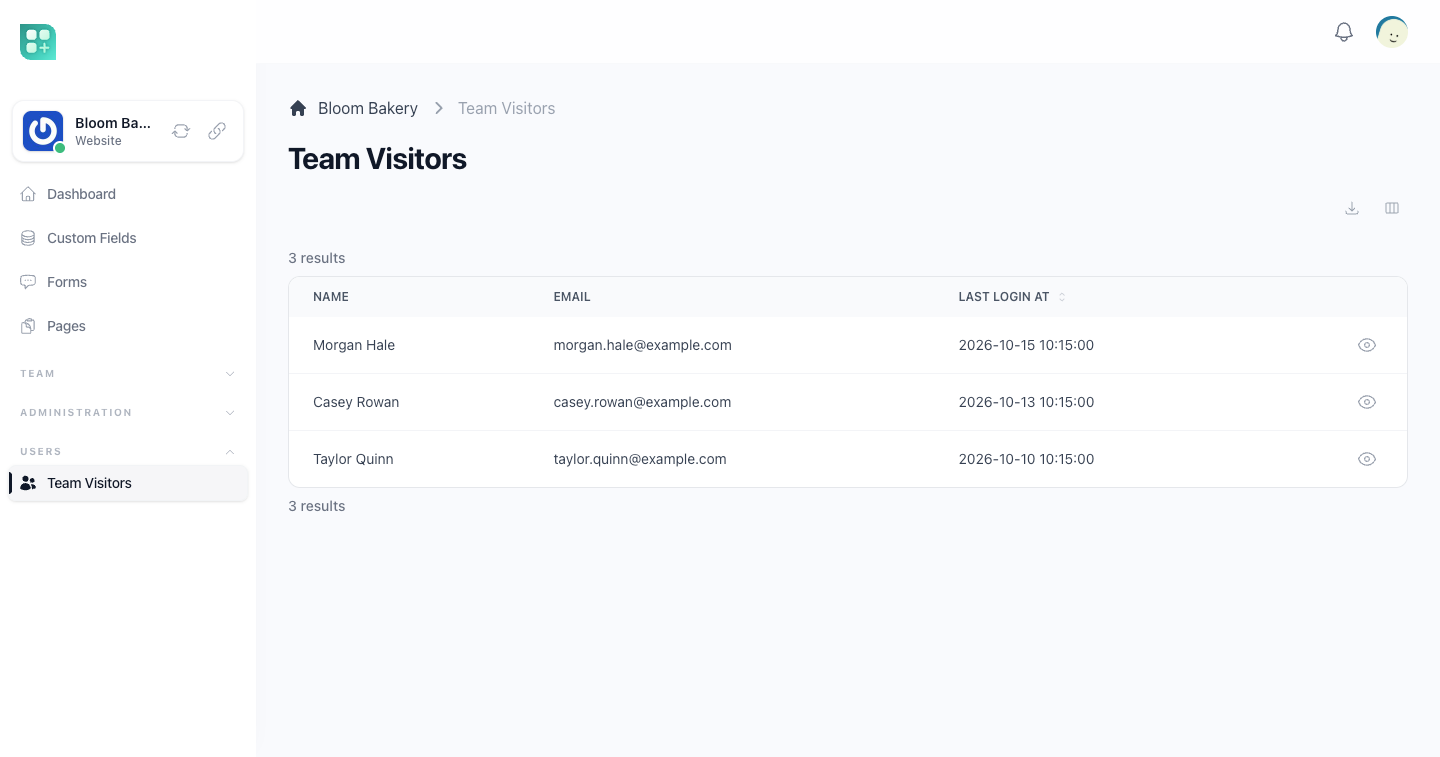
Anyone who registers or signs in on a team's site — on the sign-in or registration screen of the team's own domain — is recorded as a visitor of that team, members of the team included. Being recorded gives them no team role and no access to the workspace.
What a visitor goes through:
- They open the sign-in or registration screen on the team's domain. The screen shows the team's icon at the top (the team picture when there is no icon), and a «Powered by» line with your application's icon under the form of both screens.
- They register or sign in as on any account screen.
- Registering gives their account the
clientrole, and either way they are recorded as a visitor of that team, with the time of this sign-in.
The team's Team Visitors screen, under Team in the team menu, lists them, newest visitor first — the order in which they were first recorded, not their last sign-in — with their name, their email and the last time they signed in. The list is read-only, and open to the members with the Team Visitor: See permission.
For developers
Files on the site's own address
With MULTIMEDIA_ENABLE_MASK=true, a team's site serves the files of its library at /media/{folders}/{file name} on its own domain, so a page can show an image from the library without exposing your storage's address. With it off, that path answers 404.