
A team's site is a set of pages, each one Blade code the team writes in its workspace. This guide covers the pages screen, the editor, the layout, what a page receives when it renders, and backups. Opening any of it takes the pages add-on, as Configure the builder explains, except Import Theme, which does not check it.
The pages screen
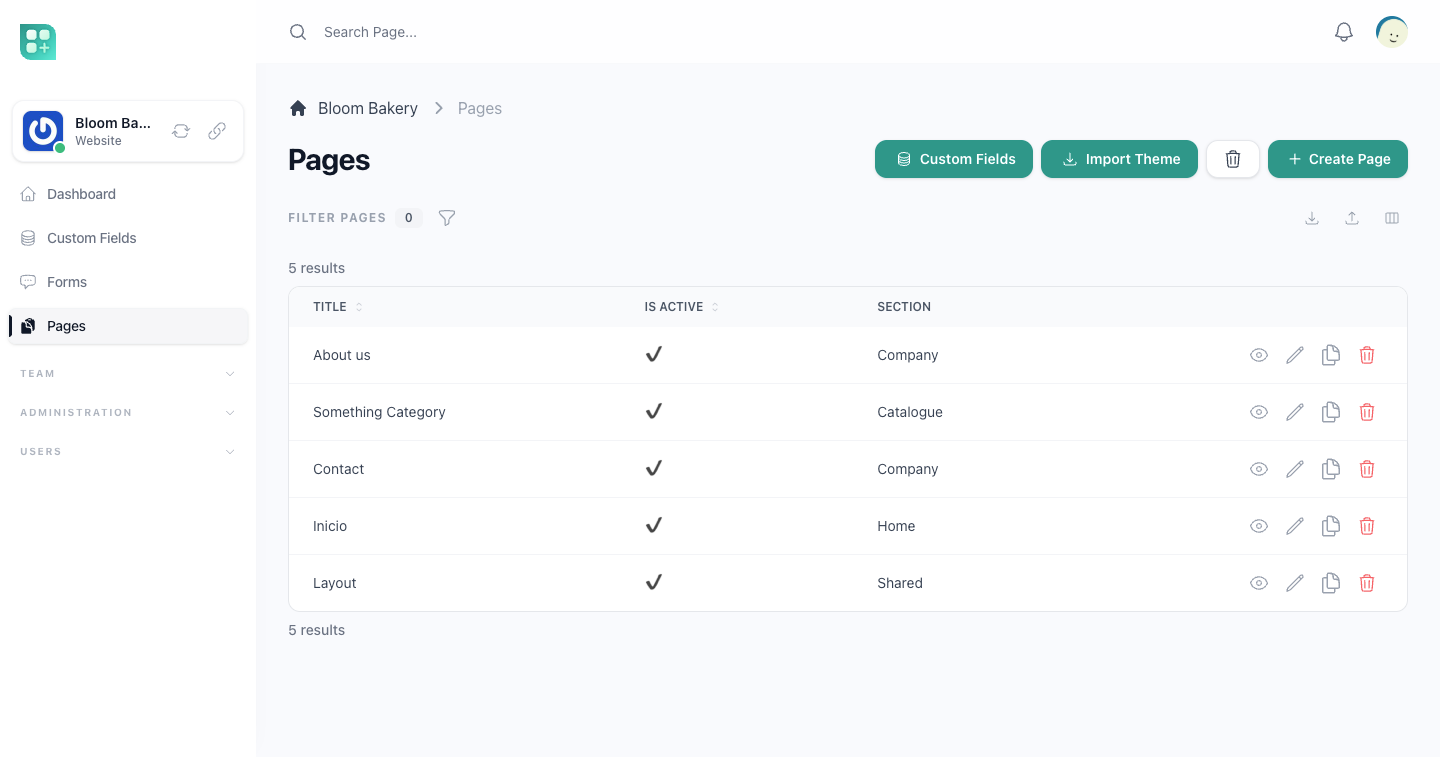
The team's Pages screen lists the team's pages. From it the team:
- Creates a page with Create and opens one to edit it.
- Copies a page with Clone Item, which gives the copy
(copy)after its title and a new address generated from that title. - Opens Import Theme, described in Import a theme. It does not need the
pagesadd-on, and it creates or overwrites pages. - Opens Custom Fields, when the team has turned them on. See Custom fields.
A super administrator of the product also sees Restore Pages, which writes the default theme's pages into the team again. It runs in the queue, so the success message appears before the pages are written. The team's layout with the address layout is overwritten by the default layout, or created when the team has none; a layout with another address is left alone. The other pages with the same title as a default page are overwritten, and the rest are left alone.
The actions follow the team permissions Page: See, Page: Create, Page: Update and Page: Delete. A deleted page is kept, and only a member with the team's owner role can restore it or delete it for good.
The pages trash
Members with Page: Delete see a button with a trash icon next to Create on the pages screen.
- Click the trash icon. The list now shows the deleted pages.
- On a deleted page, click the restore icon to bring it back, or the delete icon to delete it for good. Both icons appear only for a member with the team's owner role and Page: Delete.
- Click Return to go back to the pages.
Create a page
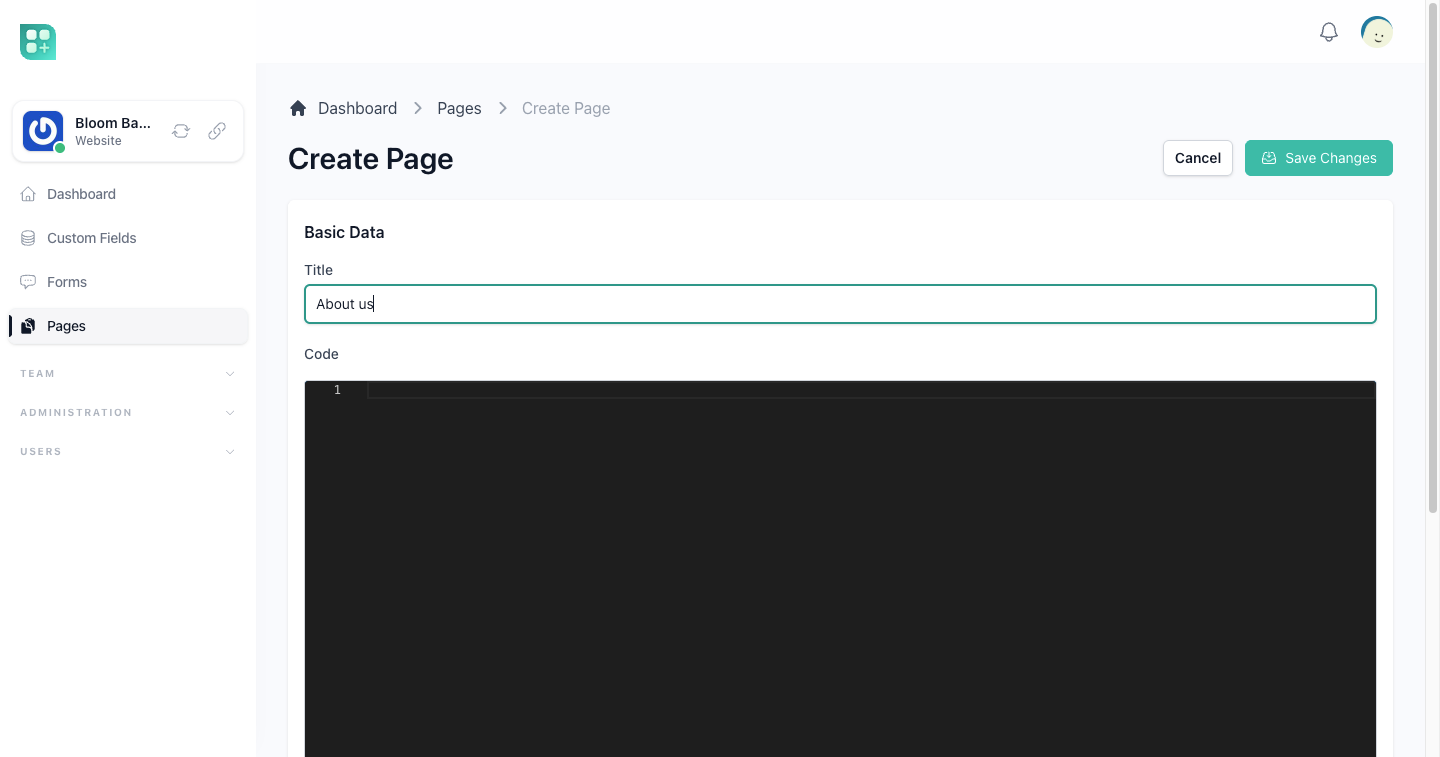
Create Page asks for the minimum:
| Field | What it does |
|---|---|
| Title | The name of the page. The Slug field is not shown here: with a category or detail template the template's slug pattern is set directly, and with any other template, or none, the address is generated from the title. |
| Code | The Blade code of the page, in a code editor with HTML highlighting. |
| Is Layout | Makes the page the shell of the site instead of a page of its own. See below. A new page starts with it off. |
| Is Active | Only active pages are served. Switch it off to take a page out of the site without deleting it. A new page starts with it on. |
| Template | A template type, for pages that list or show records. See Template types and categories. |
Saving opens the page again with everything else.
Edit a page
Once a page exists, the edit screen adds:
| Field | What it does |
|---|---|
| Slug | The address of the page, without the leading slash: about is served at /about, blog/news at /blog/news. Lowercase letters, numbers, -, /, and the {, } and ? of a slug pattern, up to 100 characters. It is unique inside the team. |
| Layout | The layout that wraps the page. |
| SEO Title | The <title> of the page. Empty, the page uses its title followed by | and the team name. |
| SEO Description | The meta description. Empty, the page has none. |
| Header | Code added inside <head> for this page only: a style, a script, a meta tag. |
| Footer | Code added at the end of <body> for this page only. |
The SEO title and description are Blade too, so {{ $page->title }} works in them.
The home page
The page served at / is the one whose template type is Home, whatever its slug. Keep exactly one active page with that template.
Layouts
A page marked Is Layout is the shell of the site: the <html>-level markup the visitor sees around every page — the menu, the footer, the shared styles. It says where the page goes with a section:
<header>
    <a href="/">{{ team()->name }}</a>
</header>

<main>
    @yield('content-inside')
</main>

<footer>© {{ date('Y') }} {{ team()->name }}</footer>
Every page with that layout selected is rendered first and dropped where @yield('content-inside') is. The header and footer blocks of both the layout and the page are added to the final document.
What a page can use
The code of a page, of its layout and of its SEO fields is rendered with:
| Variable | What it holds |
|---|---|
$page |
The page being served, with its title, slug and custom fields. |
$slug |
The page's slug, as written: contact, or categories/products/{?slug} for a pattern. |
team() |
The team whose site this is: its name, its avatar, its site settings. |
A page with a template type receives more, described in Template types and categories. Anything Blade can do works, components included, and Tailwind classes work without a build step because the site loads Tailwind's browser script.
Link another page of the site by its address, <a href="/contact">. To link the page that has a given template type without knowing its slug, use team()->getLink('Home'). It answers the page's slug without the leading / (for Home that is the home page's slug, such as home, not /), and # when no active page has that template.
Let a visitor send files
<x-site-uploader> lets a visitor of the site upload files or images, signed in or not. Put it inside a form that posts to /form/{slug}, give it a name, and add a button to send the form:
<form action="/form/order" method="POST">
    <input type="text" name="name" required>
    <x-site-uploader name="files" folder="Orders" accept=".pdf,image/*" multiple required />
    <button type="submit">Send</button>
</form>
When the form is sent, the files the visitor uploaded and left in it are kept with the entry: each one shows in the entry as a file field named after the uploader, and the email lists each one by its address. They stay in the folder the uploader names (Uploads when it names none), and their size was added to the team's space when they were uploaded.
multiplelets the visitor leave several files. Without it, only one is kept.requiredrefuses the form until the visitor has uploaded at least one file. The error names the uploader's field and shows in the site's error window, not on the uploader, unless the page prints it itself with$errors.- If the form is refused, for the uploader or for any other field, nothing is kept: the page comes back with the uploader empty, the files already uploaded are deleted a day later, and the visitor has to upload them again before sending the form.
- Without a form, or outside the
<form>, the uploader still takes the files, but nothing keeps them and they are deleted a day later. To receive files with no other field, use a form with just the uploader and a send button.
How the form is read and what each field accepts is in Forms and entries.
Backups
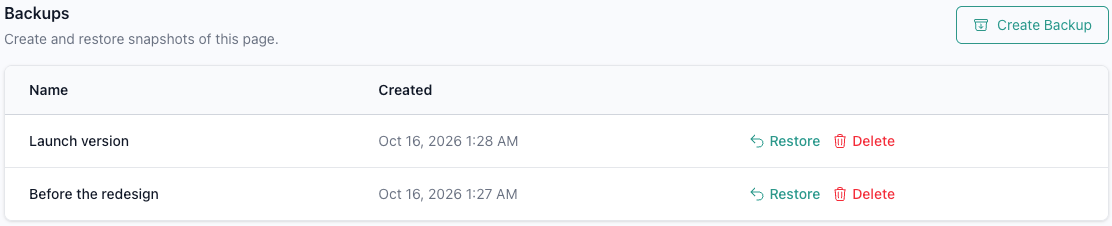
On the edit screen, Create Backup saves a snapshot of the page, with an optional name; a backup without a name is listed as «Backup – » and the date it was made. The snapshot keeps the title, the slug, the code, the template, the description, the layout, Is Layout, Is Active, the SEO fields, the header and footer blocks, and the custom fields.
The list under Backups shows five at a time, newest first, and the page of the list you are on stays in the address. Restore asks for confirmation and then replaces the page with the snapshot, all of those fields included, so restoring can switch the page on or off, or turn it into a layout or back; the edit screen reopens on the same page of the list. Delete removes the snapshot and cannot be undone; the list stays on the same page, or goes back one when the deleted backup was the last one on it. Take one before importing a theme or rewriting the layout.
Creating a backup takes Page: Create, restoring one Page: Update and deleting one Page: Delete, and all three take the pages add-on. Deleting a page does not delete its backups.
When the team has no pages
A team with no pages, or without the pages add-on, is not left with a blank site: its domain serves the pages of the default theme that ships with the product. The moment the team has pages of its own and the add-on, those are served instead.
For developers
- Restore Pages is shown to the accounts whose email is listed in
config('app.sudo'). - The pages screen is at
/team/pages, and its trash at/team/pages?trashed=1. - A team with no pages is served the default theme straight from
resources/views/stubs/themes/default/.