
A theme is a folder of Blade pages the team copies into its site in one step. This guide covers the pages a new team is given, the import screen, and the format of a theme folder, for when you ship your own.
What a new team starts with
When a team is created, a queued job copies the default theme into it: a layout, a home page, a contact page with a working form, and a category page. The pages are linked to the layout and active, so the team's domain shows a site before anyone writes a line. It is not a finished site: the category page uses the example template type SomethingCategory, which reads records no team has, so opening it answers an error. Replace it, or its template type, before shipping (see Template types and categories).
That default theme ships with the product, and whoever installs it can change it (see For developers below). Teams that already exist keep the pages they have.
Import a theme
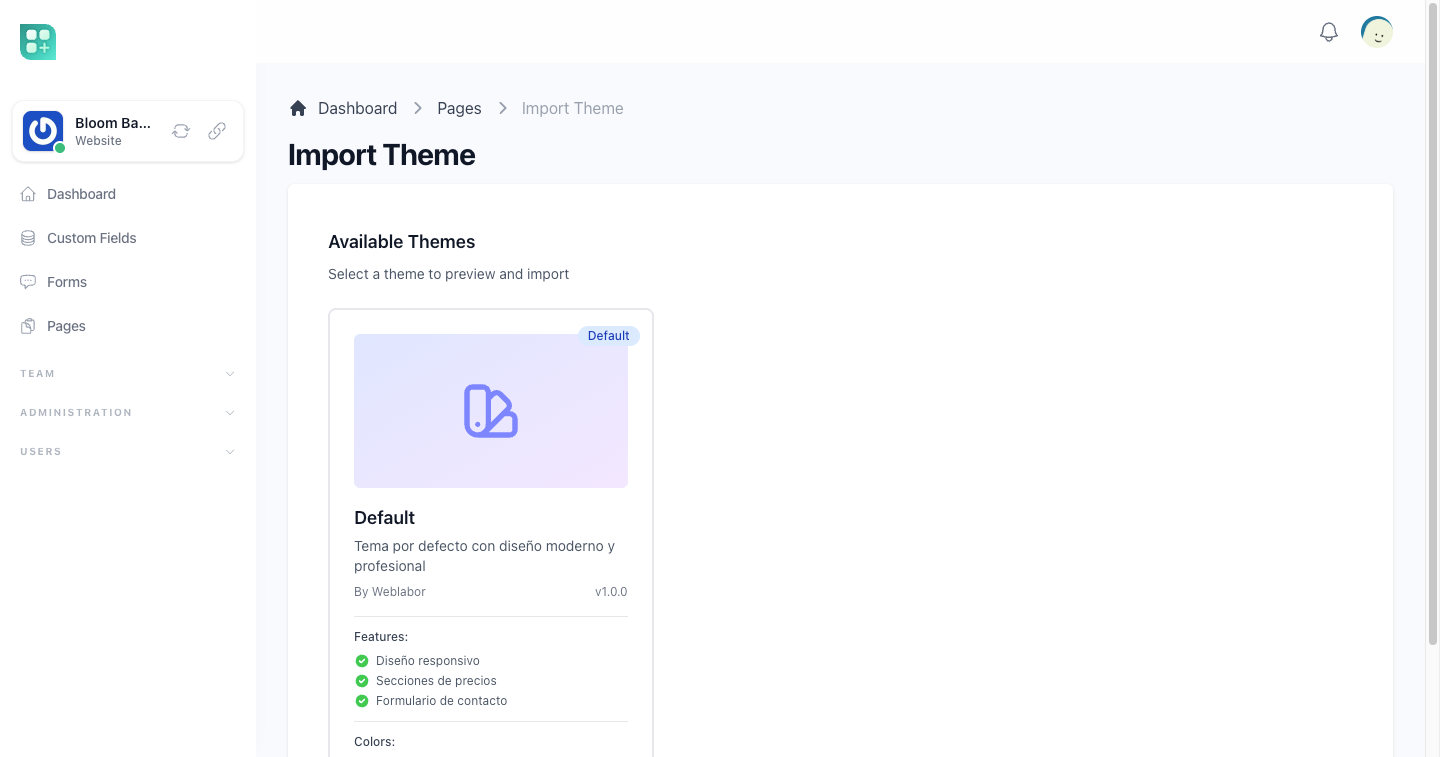
The team opens Import Theme on the pages screen. Each theme is shown with its name, its description, its author, its version, up to three of the features its metadata lists and its colours. The default theme comes first, marked Default.
- Click the theme to select it.
- Click Import Theme and confirm.
The layout is imported first and every other page of the theme is attached to it; only the first file marked as a layout is imported. Each file is matched with the team's pages by its slug: a page whose slug already exists in the team is overwritten with the theme's version, and one that had been deleted is restored first. A file of the theme that has no slug matches no page, so each import creates a new page for it, with an address made from its title. Pages of the team that the theme does not have are left as they are. The theme is remembered as the team's current theme.
The confirmation states that pages with the same slug as a theme page are replaced with the theme's version and that the team's other pages are kept.
The default theme's layout has the slug layout, so importing the default theme again updates the team's layout page instead of creating another one. Extra layouts that earlier imports created (layout-1, layout-2, …) are left as they are: delete them from the pages screen if the team does not use them.
Create a backup of any page you have edited by hand before importing: the overwrite does not keep one for you. See Pages and layouts.
For developers
Change the default theme
The default theme lives in resources/views/stubs/themes/default/. Change those files and every team created afterwards starts from your version; teams that already exist keep the pages they have. The import screen is at /team/import-theme.
Add a theme of your own
Every folder inside resources/views/stubs/themes/ is a theme, and appears on the import screen with no registration. A theme folder holds:
resources/views/stubs/themes/restaurant/
├── metadata.json
├── layout.blade.php
├── home.blade.php
├── menu.blade.php
└── components/
    └── dish-card.blade.php
metadata.json describes the theme on the import screen:
{
    "name": "Restaurant",
    "description": "A menu, a home page and a booking form.",
    "author": "Your company",
    "version": "1.0.0",
    "is_default": false,
    "features": ["Menu by category", "Booking form", "Opening hours"],
    "color_scheme": {
        "primary": "#4F46E5",
        "secondary": "#059669"
    }
}
Without it the folder name is used as the theme's name. is_default: true puts the theme first in the list, and color_scheme only shows the two colours on the card: it does not change the pages.
Each Blade file starts with a comment holding its page's data as JSON. A file without it, or without a title, is skipped:
{{--
{
  "title": "Menu",
  "slug": "menu",
  "seo_title": "Our menu",
  "seo_description": "Everything we cook, by category."
}
--}}
<section class="max-w-4xl mx-auto py-16">
    <h1 class="text-4xl font-bold">{{ $page->title }}</h1>
</section>
| Key | What it does |
|---|---|
title |
Required. The title of the page. |
slug |
The address of the page. Importing matches existing pages by it; a file without it creates a new page on every import. |
template |
A template type, such as Home for the home page. |
is_layout |
true for the layout. Mark one file per theme: only the first one is imported. |
seo_title, seo_description |
The SEO fields of the page. |
Files inside a components/ subfolder are imported as pages too, with the same header. Only the default theme is copied into new teams; the others are only reached through the import screen.
Check a theme before importing it
Run php artisan theme:validate {theme} from the project root, with the theme's folder name, whenever you add or change a theme and before a team imports it:
php artisan theme:validate restaurant
It reads the folder's metadata.json and every Blade file in the folder and in its components/ subfolder, prints what it found, and lists errors and warnings. It changes nothing.
It reports an error when the folder does not exist; when metadata.json is missing, is not valid JSON, or lacks name, description or author; when the folder has no Blade files; when a file's data comment is not valid JSON or lacks title or slug; when more than one file has "is_layout": true, or none has it; and when no file has a data comment. It warns when metadata.json has no version, when two files share a slug, and when a file has no data comment.
Any file without a slug is an error, the layout included. The default theme passes: php artisan theme:validate default reports no errors.
It is stricter than the import screen, which imports a theme without metadata.json, without a layout, or with files without a slug. The command ends with exit code 0 when there are no errors and 1 when there are.